Controllers, gyro & mouse camera
Default controller and keyboard/mouse bindings, DualSense and Switch Pro gyro setup, direct mouse camera sensitivity, and virtual amiibo controls.
- Input: XInput, SDL2 & KBM
- Mouse camera: 25–400% sens.
- Gyro: DualSense & Switch Pro
- Menu key: F1 / Esc / Guide
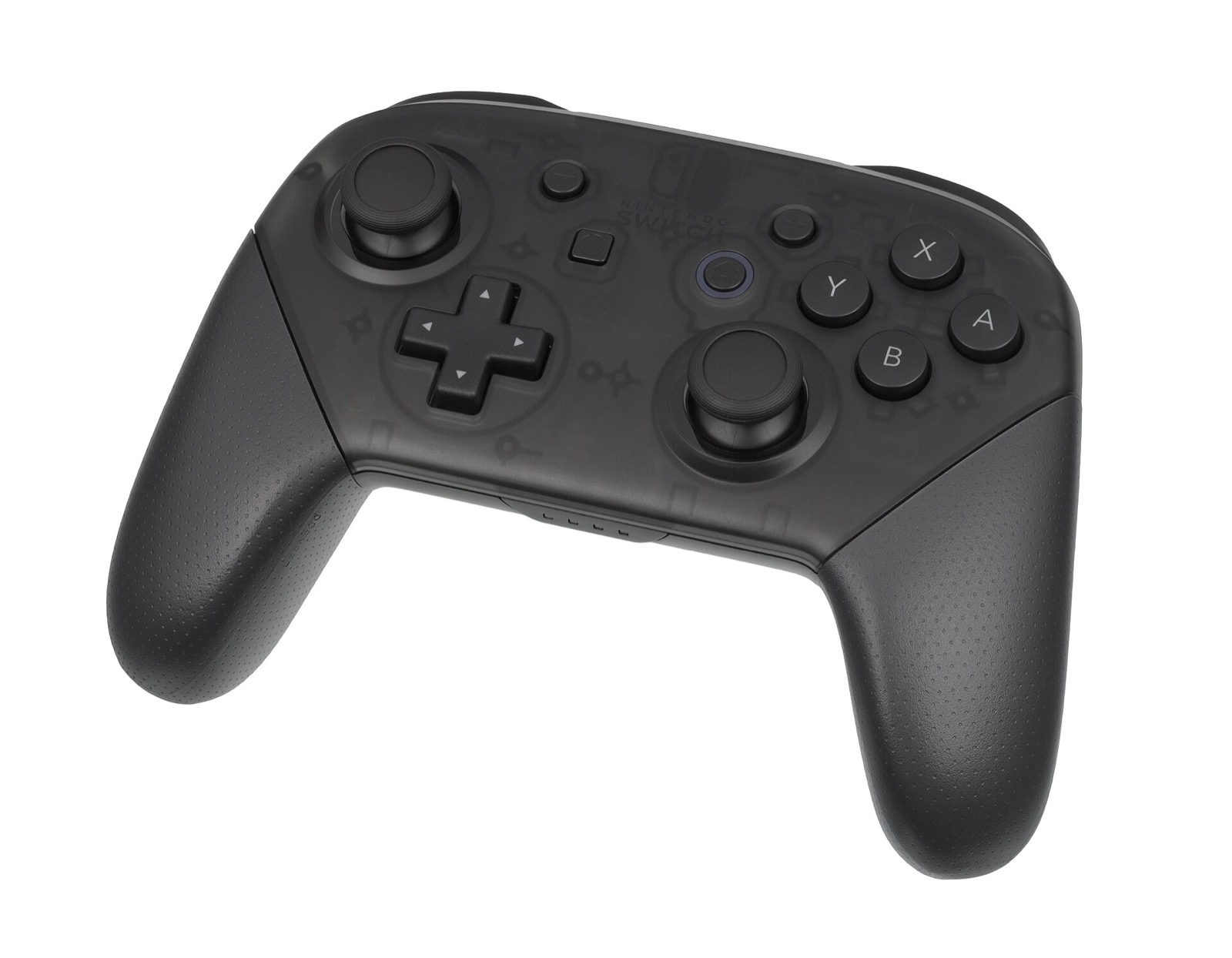
Default controller, keyboard & mouse bindings
Simon3Sarkis/super-odyssey-pc-recomp supports XInput and SDL2 controllers alongside full keyboard and mouse input. Every action below can be rebound under F1 > Input, with adjustable stick deadzones and presets:
| In-Game Action | Controller Default | Keyboard & Mouse Default |
|---|---|---|
| Move Mario | Left Stick | W A S D |
| Camera Control | Right Stick | Mouse (Direct Mouse Camera) or I J K L |
| Jump | A / B | Space |
| Throw Cappy | X / Y | Left Click, E, or Left Shift |
| Crouch / Ground Pound | ZL / ZR | Left Ctrl, C, or Right Click |
| Roll | ZL + X / Y | Hold Crouch + Throw Cap |
| Long Jump | ZL + A / B while moving | Hold Crouch + Space while moving |
| Dive / Cap Bounce | ZL in mid-air → Y | Crouch in mid-air → Throw Cap |
| Motion Throw (Up / Down / Left / Right / Spin) | Physical controller shake / gyro or bound buttons | Dedicated keyboard bindings in F1 > Input |
| Release Capture | ZL / ZR | Left Ctrl or C |
| Center Camera / First-Person | R / Right Stick Click (R3) | R / V |
| World Map / Pause Menu | - (Minus) / + (Plus) | M or Tab / Enter |
| Recomp Settings Bar | Controller Guide button | F1 or Esc |
Direct mouse camera & dynamic button prompts (v0.1.1+)
Introduced in v0.1.1 and included in v0.2.0:
- Direct mouse camera: Moving the mouse rotates the in-game camera directly without holding a mouse button. Left click throws Cappy and right click crouches. Configure sensitivity from 25% to 400% and toggle Invert Y under F1 > Input.
- Releasing the mouse cursor: When Direct Mouse Camera is enabled, the cursor is locked to the game window during play. Press Esc (or F1) to release the cursor and interact with the top menu bar (note Issue #5 if the cursor stays hidden on multi-monitor setups).
- Dynamic UI button prompts: In-game button icons automatically switch between Keyboard/Mouse prompts and Controller prompts based on whichever input device you touched last.
DualSense & Switch Pro gyro motion controls
Super Mario Odyssey uses motion gestures for spin throws, upward/downward cap throws, homing cap throws, and faster climbing/swimming. SuperOdysseyRecomp supports two ways to trigger them:
- Dedicated Motion Throw buttons: Bind Up, Down, Left, Right and Spin motion throws to keyboard keys or extra controller buttons under F1 > Input (no physical shaking required).
- Real 6-axis Gyro Motion (DualSense & Switch Pro Controller): Open F1 > Input, enable Motion Controls and Gyro Motion, and adjust the gyro sensitivity slider. SDL2 reads the hardware gyroscope directly over USB or Bluetooth.
Recommended PC controllers
Super Odyssey PC Recomp supports XInput and SDL2 controllers with automatic button prompt switching, plus native gyro motion controls for Cappy spin throws and downward cap throws on DualSense and Switch Pro controllers:
| Controller | Best For in Odyssey Recomp | Hardware Advantage | Link |
|---|---|---|---|
| Sony DualSense | Gyro motion throws & SDL2 HID | Built-in 6-axis gyroscope for Cappy motion throws + crisp D-pad | View on Amazon |
| GameSir Cyclone 2 | Precision 3D platforming & gyro | TMR sticks, 6-axis gyro in Switch mode, 1000 Hz wireless dongle | View on Amazon |
| 8BitDo Ultimate 2 Wireless | Windows & SteamOS dock play | Zero-drift TMR sticks, charging dock, Switch/XInput mode toggle | View on Amazon |
| Xbox Wireless Controller | Plug-and-play Windows 10/11 | Native XInput layout with instant button prompt switching | View on Amazon |
As an Amazon Associate, this site earns from qualifying purchases.
102-Amiibo virtual NFC overlay (in coz-0/smo-recomp)
If you are running the source-built coz-0/smo-recomp binary (smo_native.exe), press F1 or click both analog sticks (L3 + R3) to open the built-in Amiibo Overlay. It emulates the Switch nfp:user service with 102 built-in amiibo identities—talk to Uncle Amiibo or hold D-pad Right, pick any figure from the searchable grid, and the game reads the virtual NFC tag for Power Moon hints, regional coin markers, Hint Art, or special outfits.

Common questions
Can I perform Cappy spin throws and downward throws without motion controls?
Yes. In addition to the standard ground-pound + throw combo for downward cap throws and circling the left stick for spin throws, F1 > Input lets you bind dedicated buttons or keys for Motion Throw Up, Down, Left, Right, and Spin.
Why is camera turning slow on the ROG Ally Z1 Extreme built-in gamepad (Issue #13)?
Reported in GitHub Issue #13, the ROG Ally’s embedded XInput stick curve can produce a reduced maximum turn rate. Lower the right-stick outer deadzone in F1 > Input or calibrate the stick range in Armoury Crate SE.
Can I bind extra mouse side buttons (Mouse 4 / Mouse 5)?
Currently Left Click and Right Click are bound by default; full arbitrary mouse button binding in the Input remap table is tracked in GitHub Issue #11.