Linux & Steam Deck guide
Complete setup guide for Super.Odyssey.PC.Recomp-0.2.0-linux-x86_64.AppImage (84.6 MB) on SteamOS and 64-bit Linux desktops.
- AppImage: 84.6 MB
- Glibc: 2.35+ (Ubuntu 22.04+)
- Deck preset: 960x600 + FSR 1
- Cap Kingdom: 53–60 FPS
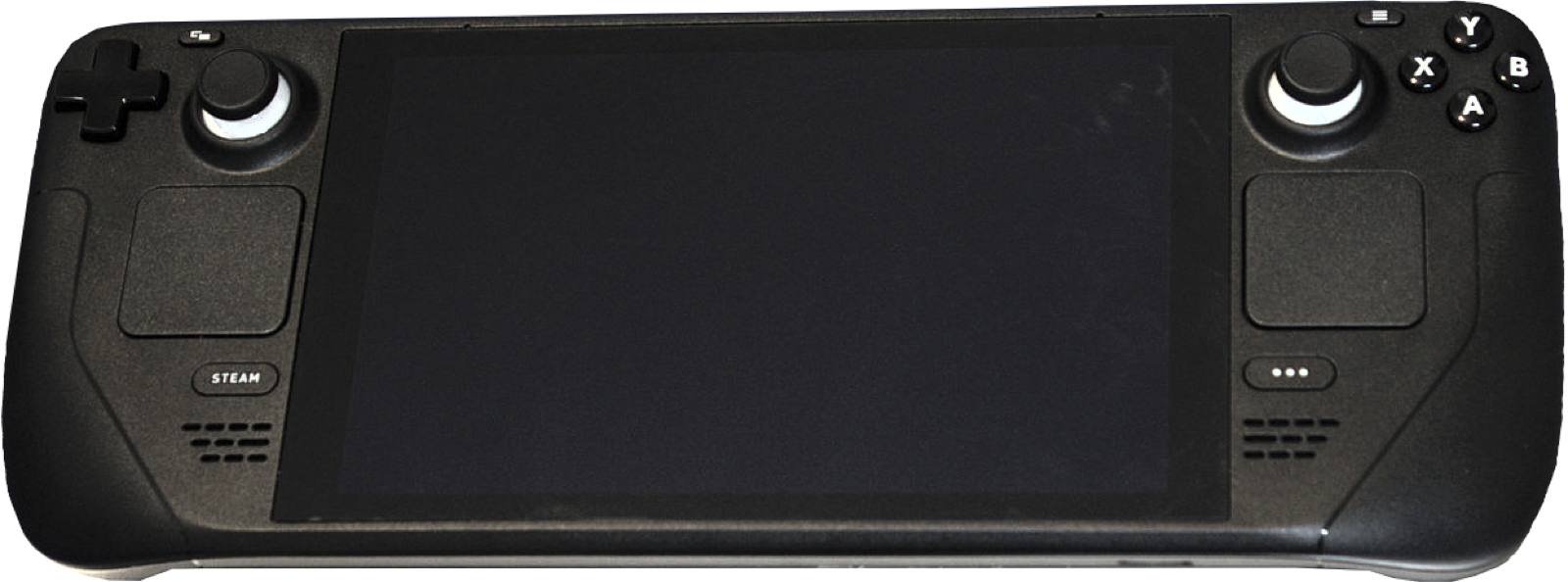
Linux & Steam Deck AppImage quick start (v0.2.0)
Release v0.2.0 ships Super.Odyssey.PC.Recomp-0.2.0-linux-x86_64.AppImage (84.6 MB, SHA-256 b41d71568268466a…) for 64-bit x86_64 Linux distributions with glibc 2.35+ (Ubuntu 22.04+, Arch, Fedora, and SteamOS). Because the AppImage bundles its own Clang/Zig compiler and shader tools, no external packages are needed:
chmod +x Super.Odyssey.PC.Recomp-0.2.0-linux-x86_64.AppImage
./Super.Odyssey.PC.Recomp-0.2.0-linux-x86_64.AppImage
Steam Deck setup workflow (Desktop Mode → Gaming Mode)
Follow the upstream workflow from docs/linux.md to install onto internal storage or a microSD card:
- Switch your Steam Deck to Desktop Mode and download
Super.Odyssey.PC.Recomp-0.2.0-linux-x86_64.AppImage. - Right-click the AppImage > Properties > Permissions > check Is executable (or run
chmod +xin Konsole), then launch it. - Optional SD card storage: Click Change Data Folder in the launcher and pick a folder on your SD card (requires ~12 GB free). The chosen path is saved in
~/.config/super-odyssey-pc-recomp/data-folder.txt. - Click Browse, select the folder containing your extracted 1.0.0 or 1.4.1
exefsandromfsdirectories, and click Install Game. Wait for the one-time C compilation and shader precompilation to complete. - In Desktop Steam, click Games > Add a Non-Steam Game to My Library and select
Super.Odyssey.PC.Recomp-0.2.0-linux-x86_64.AppImage. - Return to Gaming Mode and launch Super Odyssey PC Recomp directly from your Steam library.
Steam Deck Battery Saver preset & SteamOS frame limiter warning
- Automatic Battery Saver preset: On first launch on a Steam Deck, the runtime automatically enables its Battery Saver preset: 75% internal resolution (960x600) with AMD FSR 1 upscaling and a 60 FPS cap. In upstream testing on an LCD Steam Deck, this preset holds 53–60 FPS in the Cap Kingdom (and ~78 FPS walking / ~55 FPS in town when switched to 90/120 FPS mode).
- Do not cap the SteamOS frame limiter below 60 FPS: Because Super Mario Odyssey advances gameplay ticks per rendered frame, capping the SteamOS Quick Access Menu (
...) frame limiter to 30 or 40 FPS will make Mario run in slow motion. Keep the SteamOS frame limiter at 60 FPS or Off. - Gamepad buttons in Gaming Mode: Press the controller Guide button (or map a rear grip paddle to F1 in Steam Input) to open the in-game settings bar.
Linux data paths & building from source
| Linux Path / Variable | Purpose |
|---|---|
~/.local/share/super-odyssey-pc-recomp/ | Default Linux data directory storing extracted/, cache/, save/, mods/, powermoon.ini and SuperOdysseyRecomp.log. |
~/.config/super-odyssey-pc-recomp/data-folder.txt | Stores your custom data folder path (for example on an SD card at /run/media/mmcblk0p1/OdysseyRecomp) when selected in the launcher. |
ODYSSEY_DATA_ROOT | Optional environment variable that overrides the data directory path for portable setups. |
If your Linux distribution uses an older glibc than 2.35 or you prefer building from source, install build-essential, clang, lld, cmake, ninja-build, python3, libsdl2-dev, libvulkan-dev and zenity, then run:
cmake -B build-linux -G Ninja -DCMAKE_BUILD_TYPE=Release
cmake --build build-linux --config Release
./build-linux/SuperOdysseyRecomp
Recommended PC controllers
Super Odyssey PC Recomp supports XInput and SDL2 controllers with automatic button prompt switching, plus native gyro motion controls for Cappy spin throws and downward cap throws on DualSense and Switch Pro controllers:
| Controller | Best For in Odyssey Recomp | Hardware Advantage | Link |
|---|---|---|---|
| Sony DualSense | Gyro motion throws & SDL2 HID | Built-in 6-axis gyroscope for Cappy motion throws + crisp D-pad | View on Amazon |
| GameSir Cyclone 2 | Precision 3D platforming & gyro | TMR sticks, 6-axis gyro in Switch mode, 1000 Hz wireless dongle | View on Amazon |
| 8BitDo Ultimate 2 Wireless | Windows & SteamOS dock play | Zero-drift TMR sticks, charging dock, Switch/XInput mode toggle | View on Amazon |
| Xbox Wireless Controller | Plug-and-play Windows 10/11 | Native XInput layout with instant button prompt switching | View on Amazon |
As an Amazon Associate, this site earns from qualifying purchases.

Common questions
What if the AppImage says "dlopen(): error loading libfuse.so.2"?
AppImages use FUSE 2 to mount their squashfs image. Either install libfuse2 on your distro (sudo apt install libfuse2 on Ubuntu/Debian) or run the AppImage without FUSE by passing --appimage-extract-and-run.
Why does the game crash during the opening cinematic at 120 FPS on Linux (Issue #15 / #18)?
Reported on Linux in Issues #15 and #18, enabling the experimental 120 FPS mode before the opening cutscene can trigger an audio crackling spike followed by a crash. Keep the framerate at 60 FPS through the opening cutscene and Cap Kingdom intro, or use 120 Hz Frame Interpolation.
What if Linux logs "FATAL: no usable system font substitute" (Issue #16)?
Ensure standard system TrueType fonts (such as DejaVu Sans, Liberation Sans or Noto Sans) and fontconfig are installed on minimal Linux installations so the host font fallback resolver can locate a system font.